Jobledgerhq logo

JobLedger Academy

JobLedger Training & Sales Guide

Learn it, teach it, sell it. Get a new contractor running in their first hour.

Download PDF deck

Your progress

0%

0 / 8

JobLedger Training & Sales Guide

How to use this guide

  • Self-training: go module by module and tick each check when you can do it without help.
  • Training a trainer: read the 'Say this' lines out loud, then let the trainee drive.
  • Sales demo: use the 15-minute quick win and the objection answers.

First 15 minutes: the quick win

  1. 1Add your logo and brand color in Settings (shows on every estimate and invoice).
  2. 2Import your customers from a spreadsheet or QuickBooks.
  3. 3Invite one office person and one crew lead.
  4. 4Create a job and send one real estimate.

Owner / Admin

Runs the business

Sees: Everything: money, settings, billing, team

Never sees: Nothing

Office

Quotes, bills, schedules

Sees: Customers, estimates, invoices, financials

Never sees: Subscription and company settings

Field crew

Does the work

Sees: Their jobs, scope, dispatches, logs, time

Never sees: Prices, costs, margins, invoices, wages

Training modules

01 · 10 min · Who: Owner

Set up the company

Your logo and colors make every document look professional from day one.
Set up the company
  1. 1

    Company details

    Settings → Company: name, phone, address, logo, brand color.

  2. 2

    Invite the team

    Settings → Team: pick a role for each person. Field users never see money.

  3. 3

    Payments

    Connect Stripe or Square so customers can pay invoices online.

Say this: “Ten minutes here and every estimate goes out with your brand on it.”

You're done when: Logo shows on a test estimate and one teammate is invited.
02 · 5 min · Who: Owner, Office

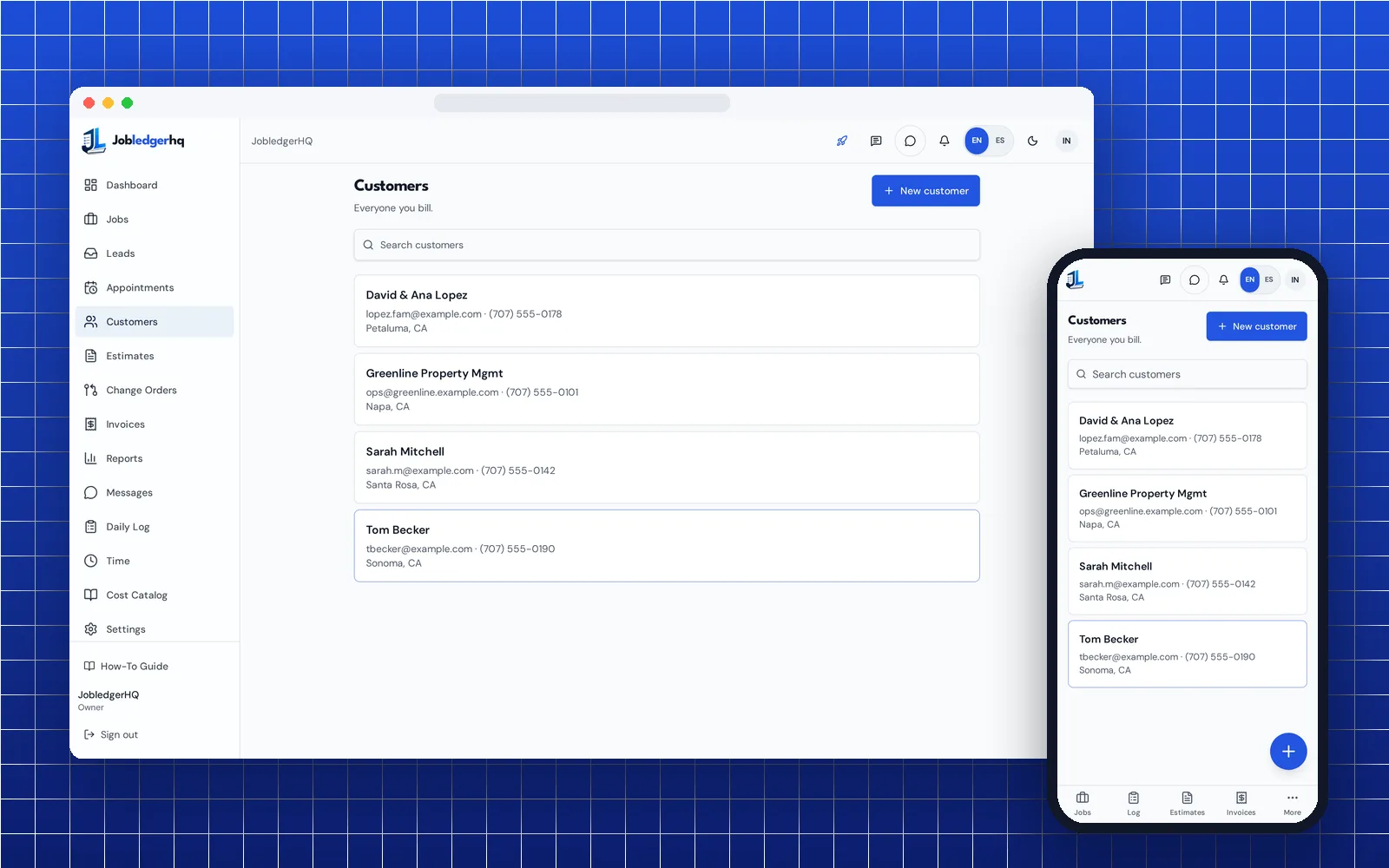
Bring in customers

No retyping. Your existing list comes in clean, with duplicates flagged.

Bring in customers
  1. 1

    Import

    Customers → Import: upload a spreadsheet or connect QuickBooks.

  2. 2

    Review

    Duplicates are flagged. Choose skip or fill in missing details.

  3. 3

    Or add one

    Tap New customer for a quick add in the field.

Say this: “Bring your list as it is. We match names, phones and emails for you.”

You're done when: Customer list imported with no doubles.

03 · 10 min · Who: Owner, Office

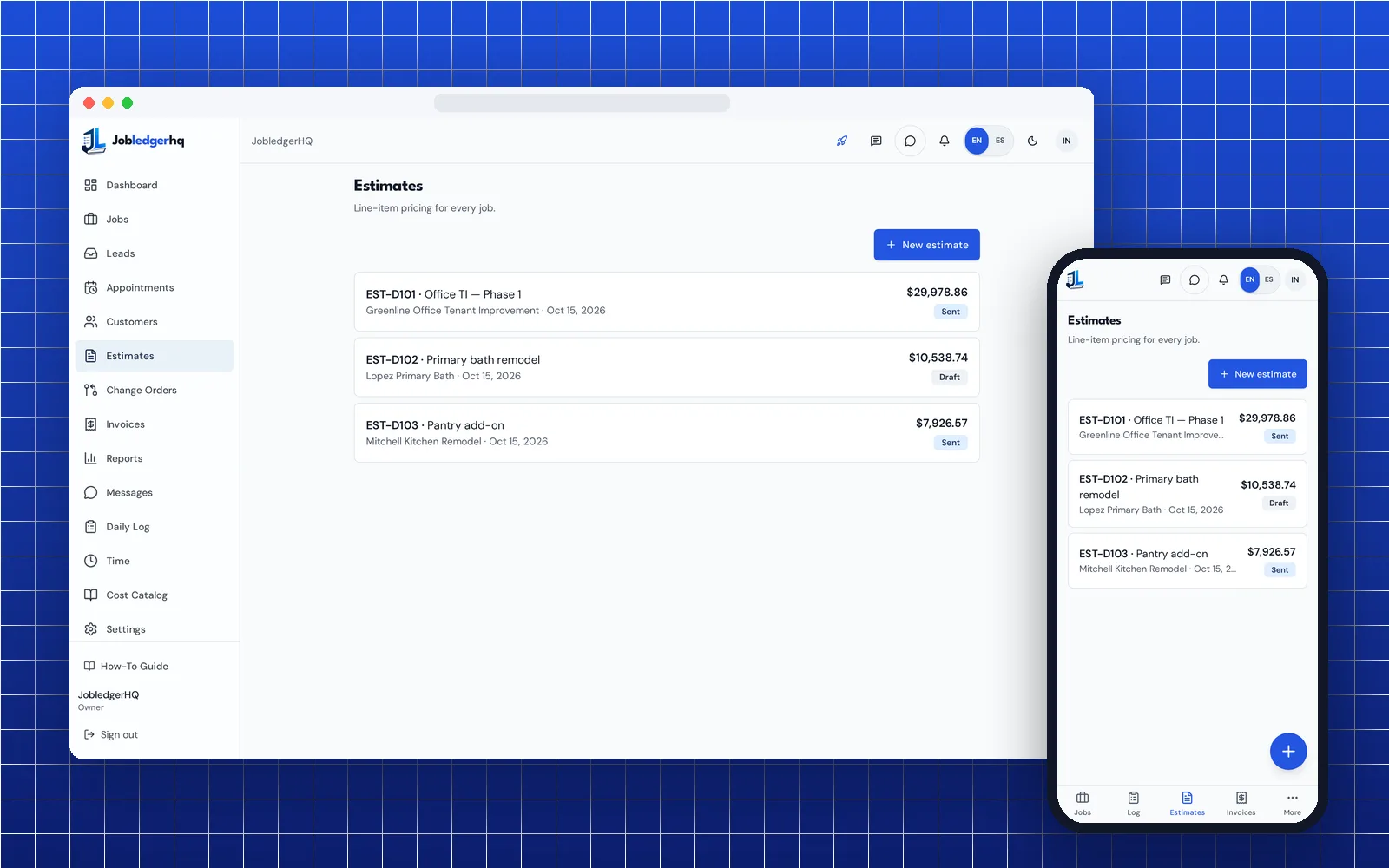
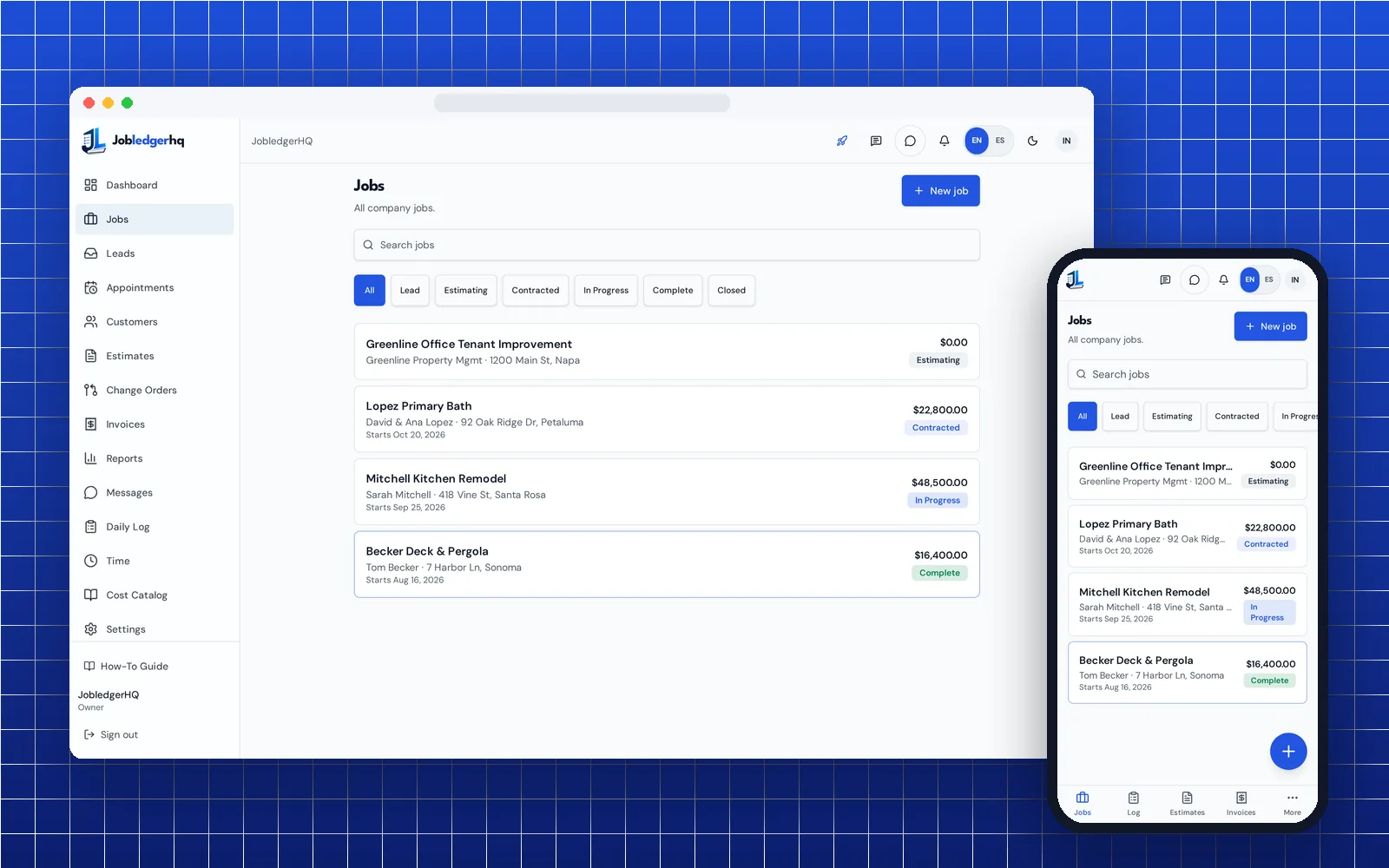
Estimate and get approval

Customers approve on their phone. Faster yes, fewer lost bids.

Estimate and get approval
  1. 1

    Create a job

    Jobs → New job, pick the customer and address.

  2. 2

    Build the estimate

    Add lines from your catalog. Totals add up automatically.

  3. 3

    Send

    Email the link. The customer approves or declines in one tap.

Say this: “Send it from the driveway. They can sign before you reach the truck.”

You're done when: One estimate sent and opened.

04 · 5 min · Who: Owner, Office

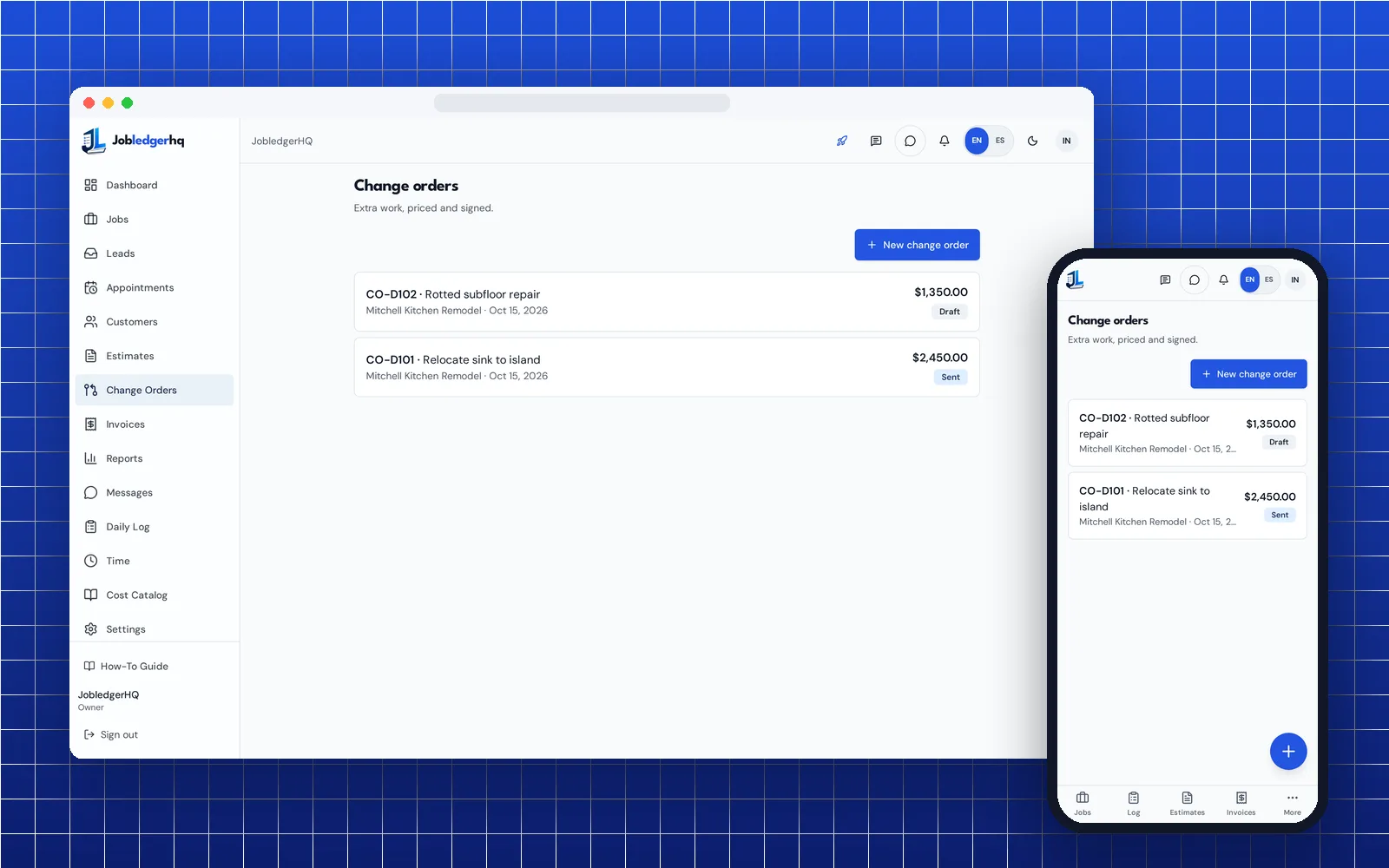
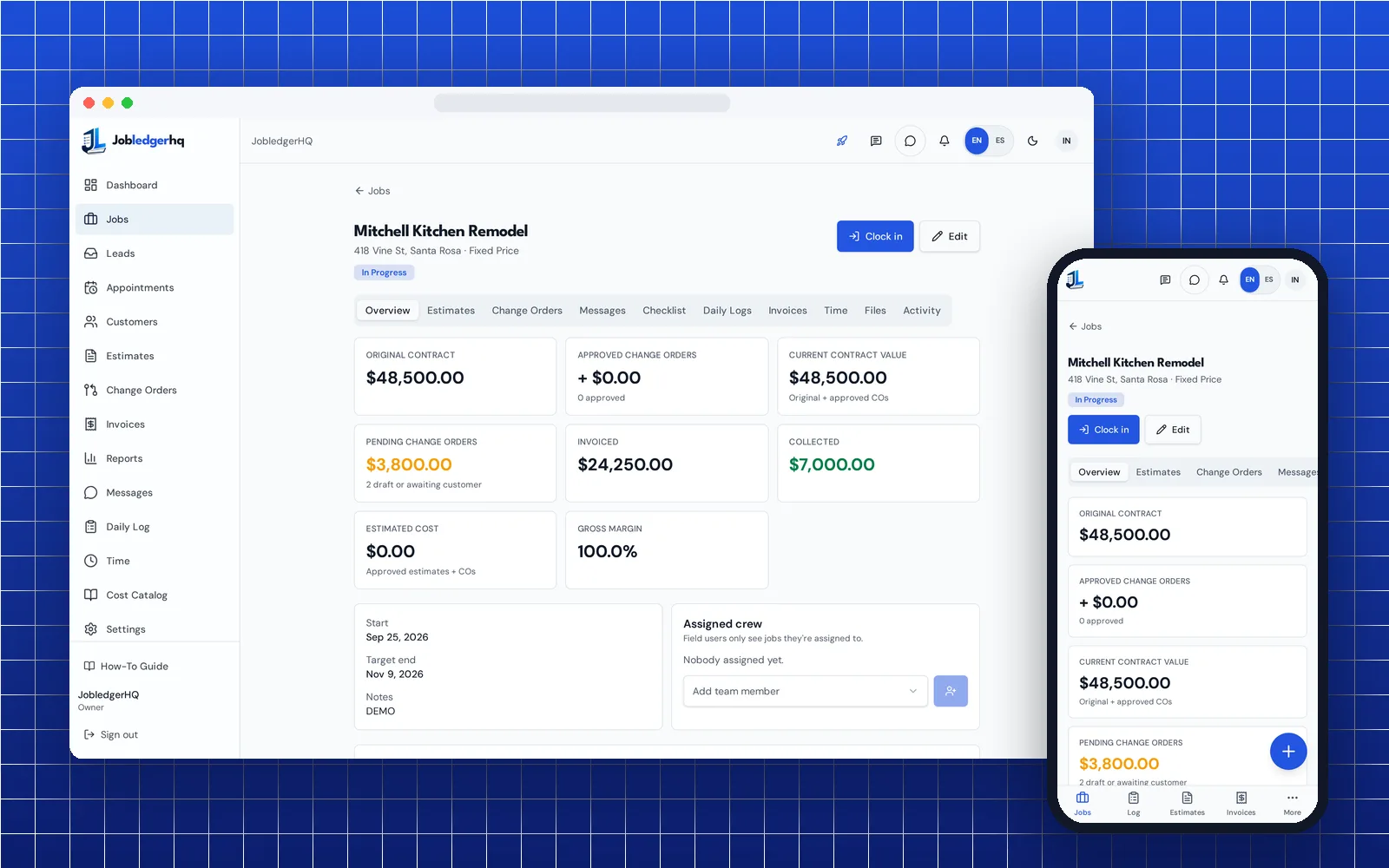
Change orders

Extra work gets approved and priced before it's done, so it gets paid.

Change orders
  1. 1

    Draft

    From the job, create a change order with the extra lines.

  2. 2

    Approve

    The customer approves by link. The job total updates.

  3. 3

    Bill it

    Add it to an invoice. It can only be billed once.

Say this: “No more 'we'll settle up later.' Get the yes in writing first.”

You're done when: A change order approved and added to an invoice.

05 · 10 min · Who: Office, Field

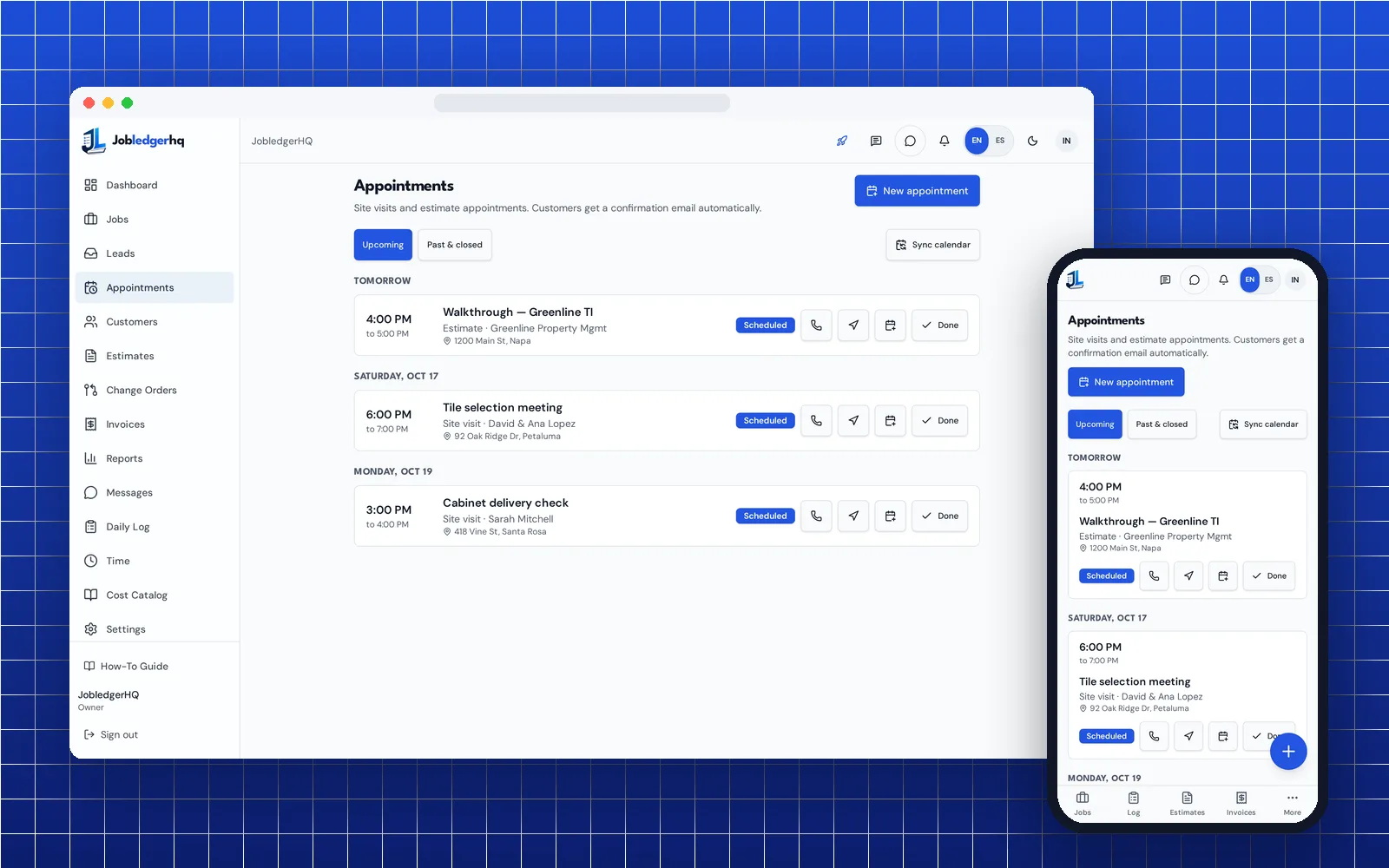
Schedule the crew

The crew knows where to be and what to do, in English or Spanish.

Schedule the crew
  1. 1

    Dispatch

    Dispatch board: assign crew for a day or half day.

  2. 2

    Instructions

    Add notes linked to the job scope. Changes get highlighted.

  3. 3

    Crew phone

    Crew sees their jobs and scope only, never prices.

Say this: “Your crew sees the work. Your margins stay private.”

You're done when: A crew member received a dispatch alert.

06 · 5 min · Who: Field

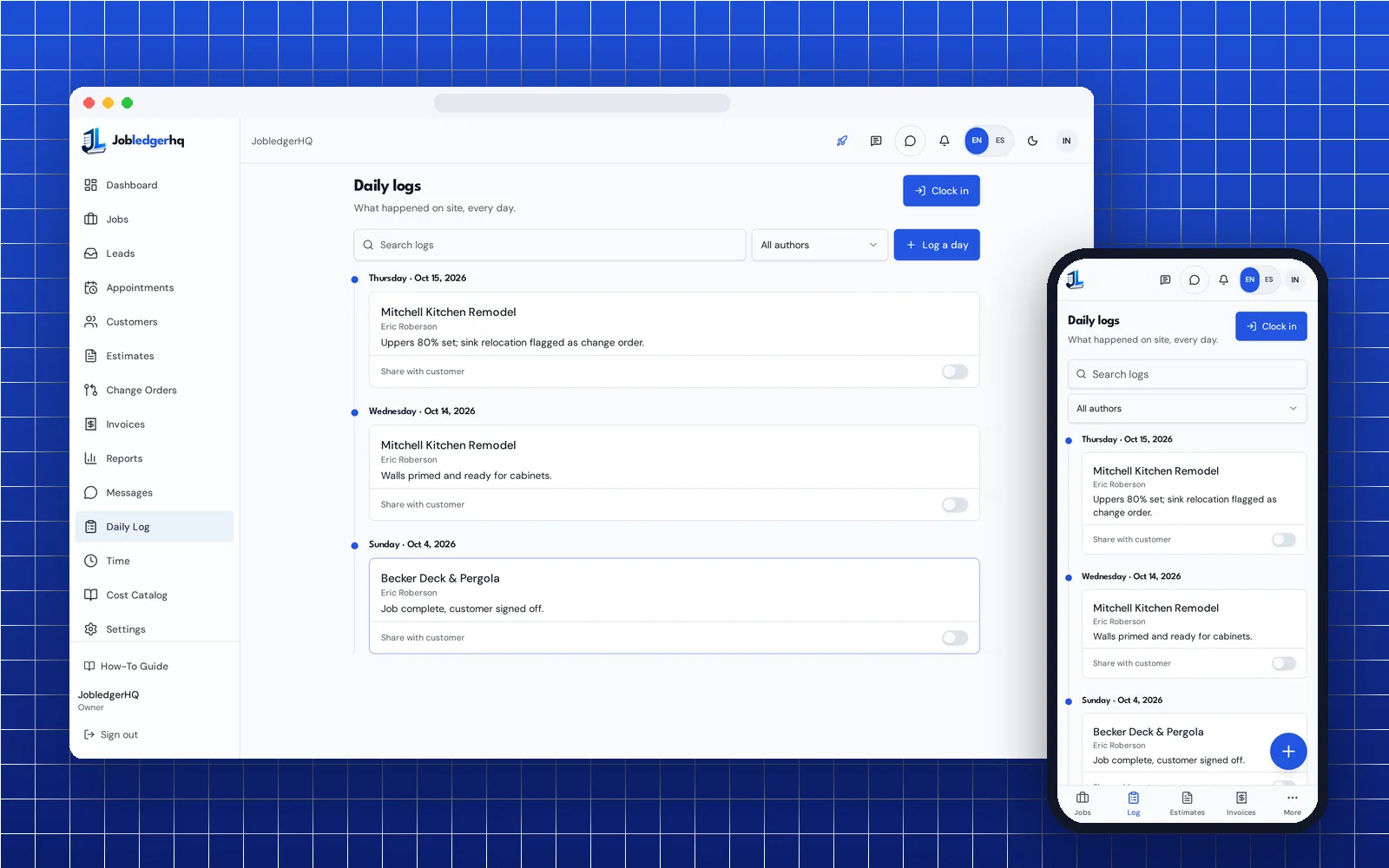
Daily logs and time

Photos, notes and hours from the job site, even with no signal.

Daily logs and time
  1. 1

    Log

    Tap Log: add notes and photos. Works offline and syncs later.

  2. 2

    Time

    Clock in and out from the Time tab.

  3. 3

    Checklist

    Tick off scope items as they're finished.

Say this: “Three taps. If they can text, they can do this.”

You're done when: One log with a photo saved from a phone.

07 · 10 min · Who: Owner, Office

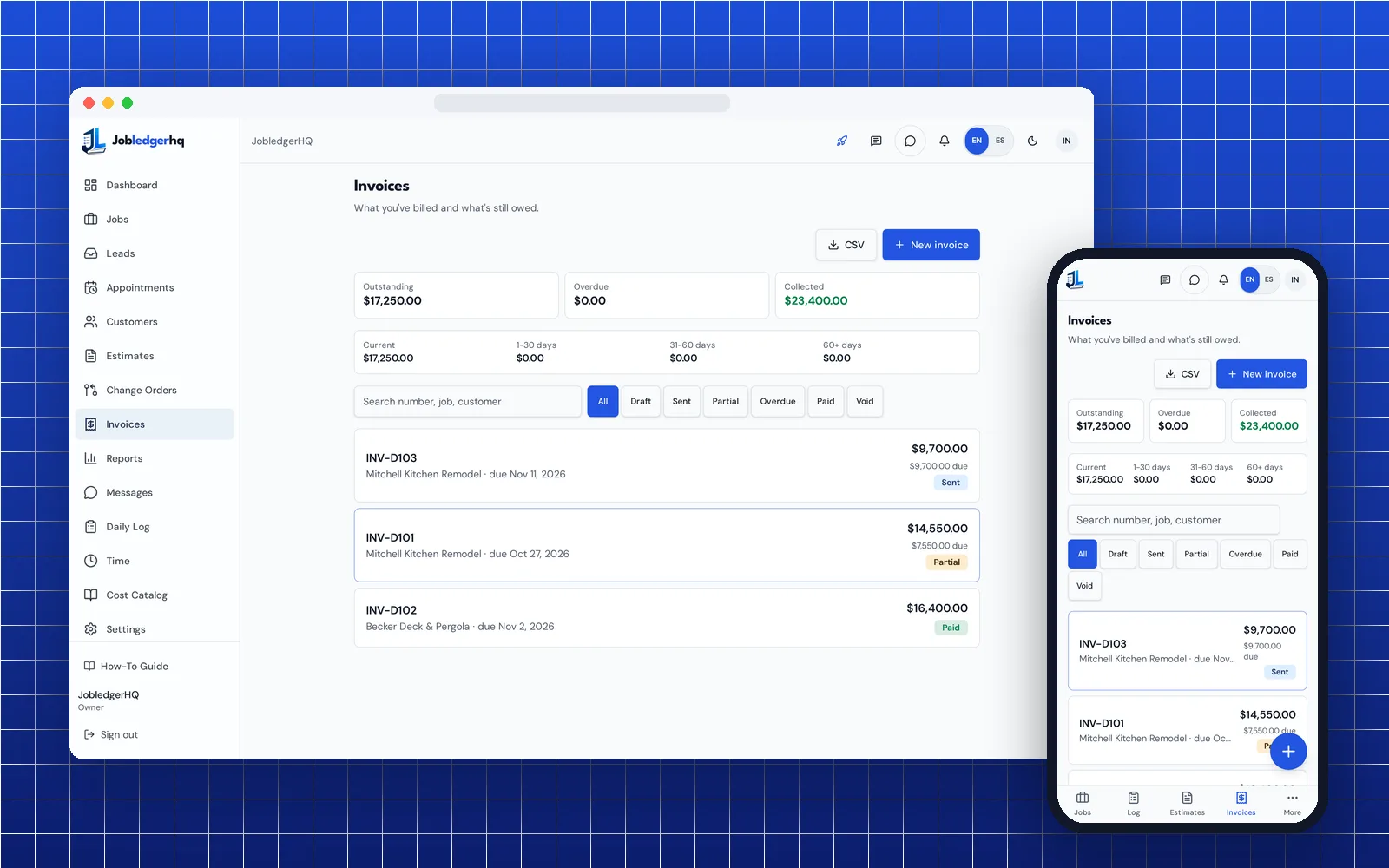
Invoice and get paid

Online payments land faster and the invoice updates itself.

Invoice and get paid
  1. 1

    Create

    Turn an approved estimate into an invoice, full or progress.

  2. 2

    Send

    Customer pays by card or bank through the link.

  3. 3

    Done

    The invoice marks itself paid. Reminders go out automatically.

Say this: “No more chasing checks. Paid shows up on its own.”

You're done when: One invoice sent with a payment link.

08 · 10 min · Who: Owner, Office

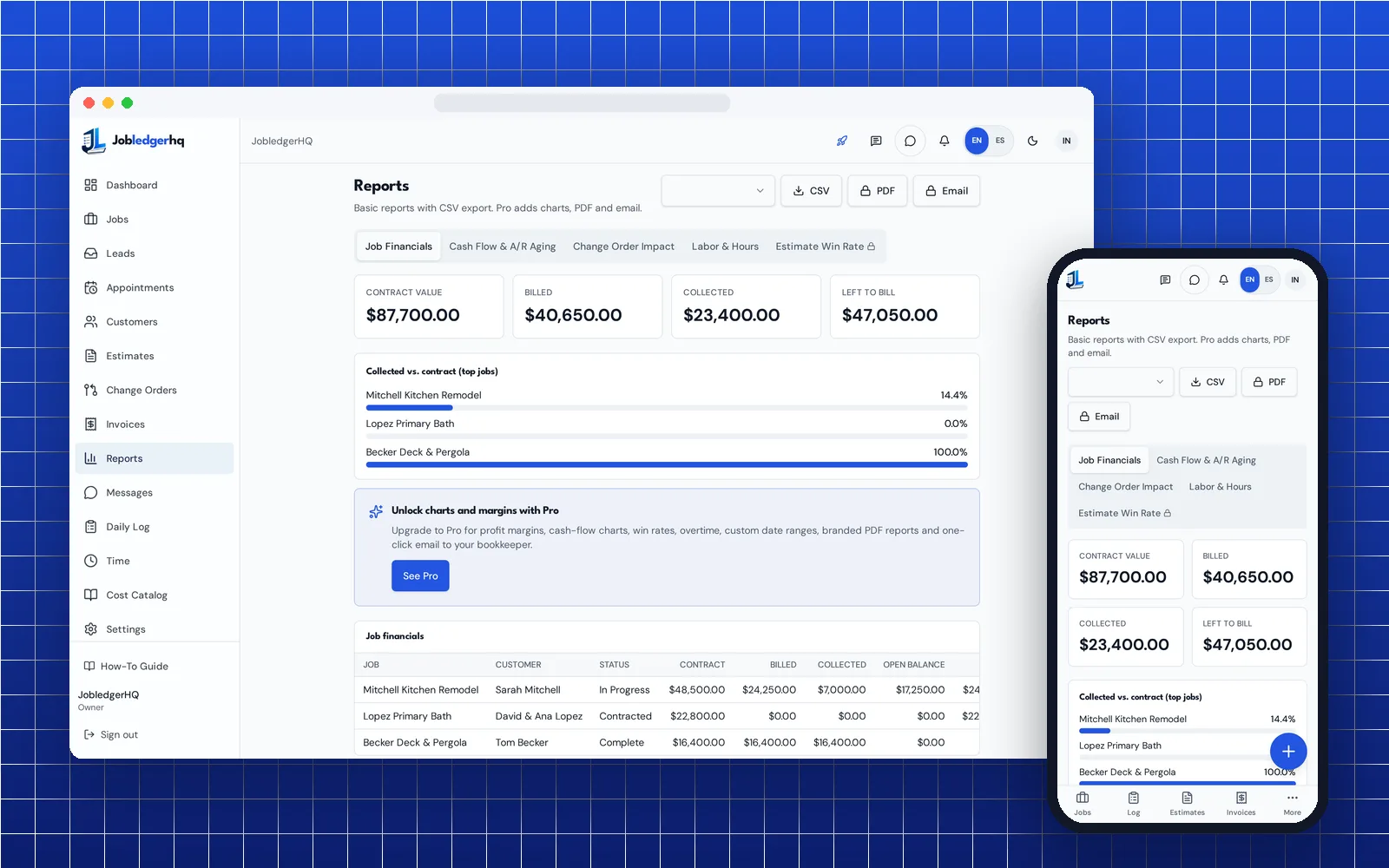
Financials and job profit

See what each job really made, not just what it billed.

Financials and job profit
  1. 1

    Costs

    Add expenses with receipts and supplier bills, tagged to the job.

  2. 2

    Reports

    Profit & loss, cash report and job money board.

  3. 3

    QuickBooks

    Push customers, invoices and payments to QuickBooks for your accountant.

Say this: “Know your margin before the final payment comes in.”

You're done when: One expense tagged to a job shows in the report.

Train-the-trainer method

  1. 1. Show

    Do it once while they watch. Under two minutes per task.

  2. 2. Hand over

    They drive their own phone or mouse. Never click for them.

  3. 3. Use real data

    Their real customers and a real job, not a demo.

  4. 4. Check

    They tick the module check without help before you move on.

14-day onboarding plan

  1. Day 1

    Company setup, customer import, team invites.

  2. Days 2-3

    First real estimate sent and approved.

  3. Days 4-7

    Crew dispatched, daily logs with photos coming in.

  4. Days 8-14

    First invoice paid online, first job profit reviewed.

Common questions and answers

“My crew isn't techy, and some speak only Spanish.”

Field users get a simple screen in English or Spanish. If they can text a photo, they can log a day.

“I already use QuickBooks.”

Keep it. JobLedger runs the jobs and sends customers, invoices and payments to QuickBooks.

“I don't have time to set this up.”

Our team can import your customer list for you. The first useful estimate takes about 15 minutes.

“I don't want my guys seeing my prices.”

Field roles never see prices, costs, margins, invoices or wages. That is enforced by the system, not a setting.

Plans

Starter $99/mo (3 users). Pro $249/mo (5 users). Online payments, AI assistant and reports are Pro. 14-day free trial with Pro features.